
After navigating to an area of interest, you can select individual objects in the PCB layout.
PCB-Investigator allows you to work with different PCB objects, including components, pads, traces, vias, and polygons.
Before selecting an object:

Click an object in the PCB layout.
The selected object is highlighted, making it easier to identify within the design.
Try selecting different objects, such as:
Notice how the selection changes depending on the object below the mouse cursor.
Tip If multiple objects overlap at the same position, click repeatedly to cycle through the available objects. Use separate clicks rather than a double-click. This applies to PCB objects other than components.
To clear the current selection, use the corresponding command in the context menu or the Clear Selection button in the toolbar.
PCB-Investigator keeps a history of recent selections. Use Previous Selection repeatedly to move back through them.
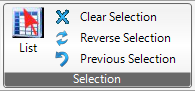
An individual PCB object can be selected, cleared, or restored from the selection history.