
Essemtec Pick & Place Exporter
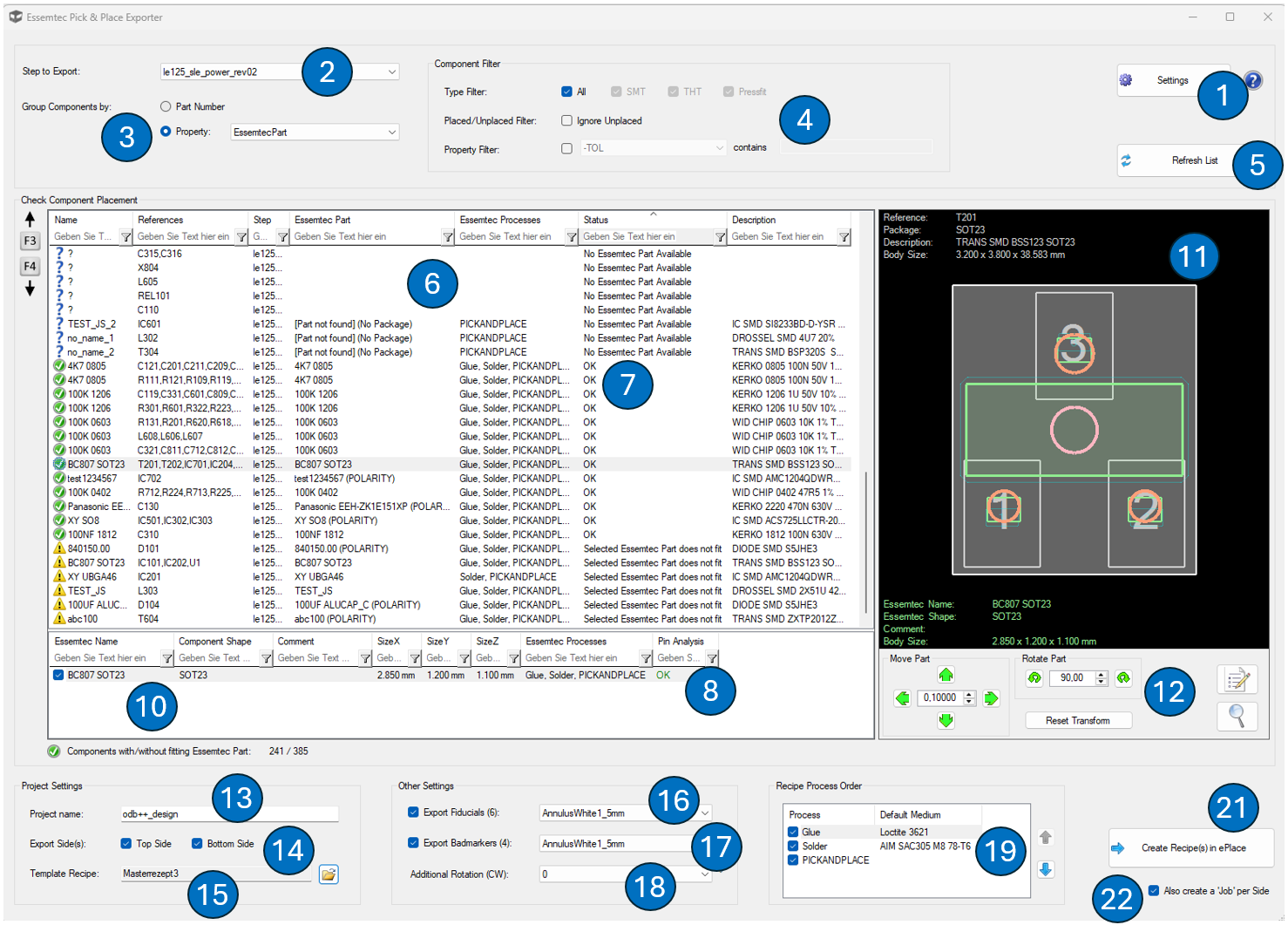
The Essemtec Pick & Place Exporter is used to create ePlace recipes from an ODB++ design loaded in PCB-Investigator. The dialog compares the CAD components from the selected ODB++ step with the Essemtec/ePlace component library, allows the user to check and correct package alignment, and finally creates the required recipe structure in ePlace.
The typical workflow is shown by the numbered areas in the dialog. Work through the dialog from top to bottom and from left to right.
Open Settings
Before the exporter can communicate with ePlace, the connection to the PCBIEssemtecServer must be configured. Press Settings to open the settings dialog.

Configure the PCBIEssemtecServer connection
In the settings dialog, select whether the server is used as a Local Server or a Remote Server. For a local server, enter the path to the installed PCBIEssemtecServer in Server Path. The server address is typically localhost. The Server Port defines the REST port used by PCB-Investigator.
The PCBIEssemtecServer is installed separately if required (contact support@easylogix.de to get the installation package). It provides a REST server for PCB-Investigator on one side and connects to the ePlace DLLs on the other side. PCB-Investigator communicates only with this server. The server performs the required ePlace library queries and creates the requested ePlace objects.
Press Save to store the settings. The exporter uses these settings when refreshing the list and when creating recipes in ePlace.
Select the Step to Export
Select the ODB++ step that should be prepared for export. The selected step defines the board, panel, or sub-panel level that is used to build the component list and recipe structure.
Choose how components are grouped
Use Group Components by to define which value is used as the Essemtec/ePlace component name.
Part Number uses the internal ODB++ part number field.
Property allows selecting any existing component property from the ODB++ design. The selected field must contain the component name that also exists in the ePlace library.
Example: If the property EssemtecPart is selected, every component group must contain an Essemtec part name in this property. This name is then used to search the ePlace component library.
Set the component filters
The Type Filter controls which components are included in the list according to the ODB++ attribute .comp_mount_type.
Activate Ignore Unplaced if components marked as not placed should be excluded when building the list. Components with ODB++ attributes such as .comp_ignore or .no_pop can be left out this way.
The Property Filter can be used to include or exclude components based on a selected component property and a text value. The filter affects both the displayed list and the export result. Only components that are present in the list are exported to ePlace.
Refresh the component list
Press Refresh List after opening the dialog and whenever the selected step, grouping, filters, or settings have changed.
Refresh List builds the component list according to the current filter settings and immediately matches the component groups against the ePlace library. During this step, PCB-Investigator also tries to automatically recognize the correct orientation. Components may be tested in 90 degree rotation steps to find a fitting orientation.
Check the component placement list
The main table shows the grouped CAD components and the result of the ePlace library matching. Each row represents one component group.
The table shows the component name, references, ODB++ step, matched Essemtec part, Essemtec processes, status, and description. The status column is the most important column for checking whether the component is ready for export.
Understand the status messages
OK means that the Essemtec part was found and the package analysis is valid.
No Essemtec Part Available means that no matching part with this name exists in the ePlace library. The component can still be exported with this part name, but the missing part must then be created later in ePlace, unless an existing component shape is selected before export.
Selected Essemtec Part does not fit means that an Essemtec part is selected, but its package does not match the CAD package. The user must check the component, select another shape if required, or correct rotation and offset.
POLARITY is added as an information marker if the component has a polarity marker. In this case, the user should check the polarity carefully before export.
Use the package and pin analysis
The exporter checks whether the package from the ePlace library fits the CAD package. The analysis verifies that the pin count is identical and that every ePlace pin lies inside exactly one CAD pin. Additional orientation checks are also performed.
If polarity information is available, PCB-Investigator also checks whether the polarity marker is located close to CAD pin 1 or the marked polarity pin. If this is not the case, a warning is shown in the pin analysis.
Search a component shape for missing parts
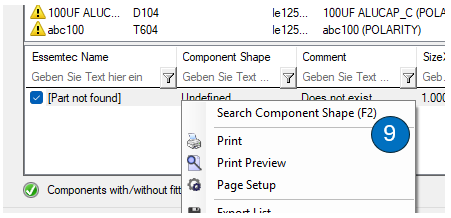
If no Essemtec part exists for a component group, right-click the row in the lower component table and select Search Component Shape (F2).
This allows the user to select an existing package or component shape from ePlace. PCB-Investigator can then create a new Essemtec part in ePlace using this selected shape.
PCB-Investigator only creates the new part. Missing component information must be completed later in ePlace by the user.
If no package is assigned, the component is still exported with the part name from the list. In that case, the part does not yet exist in ePlace and must be created later there. ePlace will warn the user about this situation.
Review the selected Essemtec part details
The lower table shows the selected Essemtec part or component shape for the currently selected component group. It contains information such as Essemtec name, component shape, comment, size values, processes, and pin analysis result.
Use the graphical preview
The preview on the right side overlays the CAD package and the selected Essemtec package or shape. It helps the user visually check body size, pin position, pin numbering, package center, and polarity.
The CAD and Essemtec outlines are shown together so that mismatches can be detected before export. If the Essemtec package is shifted or rotated compared to the CAD package, the component may not fit until the placement transformation is corrected.
Move or rotate the selected part
Use Move Part to shift the selected Essemtec part relative to the CAD component. The step width defines the movement distance for each click.
Use Rotate Part to rotate the selected Essemtec part. The rotation value is entered in degrees and is applied clockwise.
Use Reset Transform to remove the manual transformation and return to the automatically recognized position.
Enter the project name
The Project name is used as the base name for the created ePlace recipes and optional jobs.
Recipe names are created from the project name, the step name if required, and the side postfix. For the selected step itself, the project name is used unchanged as the base name. For lower-level steps, the step name is appended. The side postfix is then added, for example Top or Bot.
Select the export side
Use Top Side and Bottom Side to define which board sides are exported. Only the activated sides are created in ePlace.
The exporter creates separate recipes per side and step. For panels and family boards, the individual board recipes are created first. Panel-level recipes are then created separately and reference the corresponding individual board recipes in ePlace.
Select a template recipe
Press the template recipe selection button to select an existing ePlace recipe as a template. The selection dialog lists the available recipes from ePlace.
The selected template can be used to copy ePlace-specific settings into the newly created recipes. These settings are independent from the PCB layout data in PCB-Investigator.
The following template settings can be copied if selected:
Machine Settings
Process Control
Transport Parameters
Export fiducials
Activate Export Fiducials to export recognized fiducial pads to ePlace.
PCB-Investigator recognizes ODB++ pads on the outer copper layers with the attribute .pad_usage=l_fiducial or .pad_usage=g_fiducial. These pads are exported per step using the selected ePlace fiducial symbol.
The number in brackets shows the number of recognized fiducials that will be exported with the current settings.
Export bad board markers
Activate Export Badmarkers to export recognized bad board marker pads to ePlace.
PCB-Investigator recognizes ODB++ pads on the outer copper layers with the attribute .board_mark. The value of the attribute is not relevant. Pads with values such as bbm or gbm are recognized.
The pads are exported per step using the selected ePlace badmarker symbol. The number in brackets shows the number of recognized badmarkers that will be exported with the current settings.
Set an additional global rotation
Use Additional Rotation (CW) if the PCB is placed into the machine with an additional rotation.
The entered angle is applied globally to the generated recipe. The value is clockwise.
Check the recipe process order
The Recipe Process Order area shows the processes available from ePlace, for example Glue, Solder, and PICKANDPLACE.
The processes shown for each component come from ePlace. The user can select which processes are included and define their order before export.
Select the default medium for each process
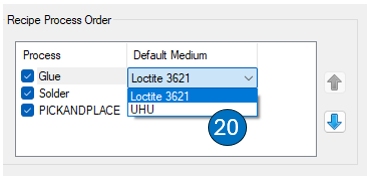
For each process, select a Default Medium from the list provided by ePlace.
The selected medium is required when the job or recipe is created in ePlace. The available names come from Essemtec/ePlace.
Create the recipe or recipes in ePlace
Press Create Recipe(s) in ePlace to create the required ePlace recipes from the current list and settings.
Before the export starts, PCB-Investigator checks whether the required recipe and job names are still available in ePlace. If one or more names already exist, the occupied names are displayed and the user must change the project name or naming settings before exporting.
PCB-Investigator does not delete, edit, or overwrite existing ePlace objects. It only creates new objects.
All components currently shown in the list are written to the recipe. Parts are only newly created in ePlace if they were not found during refresh/matching and if the user assigned an existing package or component shape.
Create jobs per side if required
Activate Also create a 'Job' per Side if jobs should be created together with the recipes.
A job is an ePlace object that is based on one or more recipes. If this option is active, PCB-Investigator creates the required jobs after creating the recipes.
Additional information: XML settings
Some naming options can be adjusted manually in the XML settings file:
%LOCALAPPDATA%\EasyLogix\PCB-Investigator\PlugIns\EssemtecExportSetting.xml
The default side postfixes are typically Top and Bot. They can be changed in the XML settings if another naming convention is required.
The name prefixes for exported fiducials and badmarkers can also be configured there. By default, fiducials use the prefix Fid and badmarkers use the prefix Bad. The generated names are therefore created as Fid1, Fid2, Bad1, and so on.